Showing posts with label video management software. Show all posts

Tuesday, November 18, 2014

Using IP Camera Video Management Software to Create a Physical Security Systems

Physical security systems consist of hardware and software that provide security and safety. Today we can attach a variety of devices to the network and use a number of integrated software products that provide a unified solution.
banner-Safety-Security-image
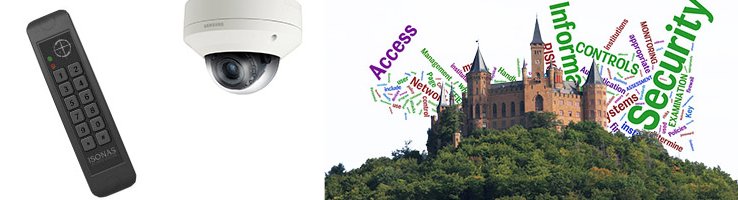
For example, the integration of door access control software, emergency paging software and the latest video management software (VMS) can provide a very nice security and safety system. Now we can use IP cameras, IP sensors, IP door readers and IP paging amplifiers to provide a very complete physical security system.  These IP based security systems provide similar capability to Physical Security Information Management (PSIM) software at much less cost.

Wednesday, July 3, 2013

IP Intercoms for Door Access Control


The other day I was wondering if two paper cups and string could be considered an intercom.  Even though it’s not electrical, it certainly demonstrates the concept of an intercom. 

The basic intercom consists of two sets of microphones and speakers connected by electrical wire.  It has been around for many years.  The first intercom I saw was one my father-in-law gave us many years ago.  It was sitting in my attic, and when I decided to write this article it took me a while to find it.  I dusted it off and wired it up.  It still works!   This was made by the Connecticut Telephone and Electric Company (no longer around), and it had microphones and speakers powered by 2 C-cells.  The two intercoms could be up to 2000 ft. away from each other.  Not bad for 1950’s technology.  
It’s interesting to note that many of the intercoms we use today haven’t progressed much beyond that simple model.  They use power supplies, better microphones and speakers but still rely on the same set of wires between the intercoms.  They have added some additional capabilities such as allowing a master unit to communicate with a number of slave intercoms, but other than the switching capability, it’s all the same. 

IP Intercoms

The latest IP intercoms convert the analog audio signal to a digital encoded signal and use the network to establish a communication path.  Now it is
possible for one person at a computer to talk to thousands of intercoms. The IP intercoms can be on your local network or across the Internet in a different city. 

 Network attached Intercoms use a number of different protocols and encoding to transfer the audio.  Each intercom has a unique IP address so the user can talk to any intercom or to all the intercoms at one time.  The protocol also allows various control messages to be sent back and forth.  For example a person can push the call button on the intercom and a person at a remote computer station will hear the doorbell.  They can then have a conversation.  The person at the computer station can then send another message that causes a door to unlock. 
Intercoms with IP Cameras
A special intercom attached to an IP camera provides a very effective door access control system.

This intercom camera system allows you to see and talk to the person at the door.  The IP camera must support two-way audio and have IO connections that allow the call button and the door release to be connected.  This allows you to control entry at a door. 

Video intercoms or InterCAMS are the next generation of intercoms for access control.  The
interCAM has a built in camera so you can see the person at the door while you talk to them.  The camera is placed at the right position so you can see the person’s face and surrounding area.  It’s amazing that viewing a person can help us make a better decision of who to allow into the facility.
To make this all work correctly you need software running on your computer.  The simplest software is just the web browser.  It allows you to view a person at a door, talk to them and release the electric lock.  The only problem is that you are not alerted when the person pushes the call button.  It also doesn’t work well if you have more than one door.  It is much better to use special Video Management Software (VMS). 

Using Video Management Software
We looked at a number of Video Management Software products before selecting Ocularis from OnSSi.   This VMS from OnSSi has a very nice alarm feature that makes it easy to handle all types of alarm conditions including someone pushing the door bell (call button).   The software also handles multiple doors because it pops the video into a window on your computer which shows the person at the door. The only requirement is a microphone and speaker at the computer.    

Getting the System to Actually Work
This all may sound easy, but there’s a lot more to this system than meets the eye.  We learned this the hard way when we installed our first systems.  Some cameras that claim to have two-way audio don’t actually work correctly with the VMS software.  Two way audio can be set up to work in full duplex or half duplex mode; which means that the sound can go in both directions at the same time (full), or one way at a time (half).  If this isn’t set up correctly you can get feedback (sound screeching) at one side of the connection.  It is also important to make sure the right diodes and relays are used to open the electric locks.  Now we have hundreds of installations working, but it did take some work to get it right.

Intercoms have come a long way and until recently have worked the same way as the original units.  Just like our security cameras and IP door access, the intercom has joined the technology that makes use of the network.  It is dramatically easier to install and makes our world much safer. 

If you need any help deciding on the best intercom for you, please contact us at 914-944-3425 or use our contact form. 

Tuesday, January 22, 2013

NVR, DVR, or Video Server?


By Virginia Fair

“Questions………we get questions”

Wasn't that a jingle on a popular TV show of the Sixties? (Seventies?)  Well it could be Kintronics' theme song, too. Our sales engineers get all kinds of questions when fielding calls.

 Today we’ll give you a hypothetical conversation that could occur any day. A caller wants to know what type of video storage device her business should use.

Caller: “What is the difference between a Video Server, a NVR, and a DVR?”
Video Server
Sales Engineer: The network video server is a computer that runs special Video Management Software known as VMS and is used to record video from IP cameras. A windows computer is usually the platform for the VMS, and video is recorded onto the computer’s hard drives in a special video format.
Sometimes people are confused by this term because a number of years back a device that attached an analog camera to the networks was also called a video or camera server. Now that’s known as a Video Encoder.

Caller:  Yes, I was confused by that myself. Now what about the NVR?
NVR
Engineer:  A NetworkVideo Recorder, or NVR, is a complete IP camera recording device. It includes a computer and special Video Management Software. VMS is required for recording video, but it also allows multiple viewers to monitor real time and recorded video.


Caller: I think I understand, but could you go over the differences between the Network Video Server and a Network Video Recorder one more time?

Engineer: Sure. The Video Server and Network Video Recorder are similar in that they both record video. The Network Video Recorder comes with the Video Management Software already installed.
 The Video Server does not include VMS. You select the software you like and load it.
The Video Server usually runs on a Windows operating system and it’s more flexible than the NVR because it is easier to expand and add cameras. The NVR, on the other hand usually has a fixed limit as to the number of cameras it can support.

Caller:  Okay, Got it. Now what about a DVR?
DVR
Engineer: The DVR or Digital Video Recorder is a device that records video from analog cameras to one or more hard drives. The term DVR is also used by the consumer TV market.
 The DVR used in the security market has a fixed number of BNC connections to attach cameras. DVRs are available with 4, 8, 16, 32, and 64 channels, or connections. This means that you have a maximum number of cameras that can be supported by one unit. Once you exceed the number of connections available on that particular DVR, you will need to add another DVR to your system.
 There are some DVRs that can connect to the network, and be viewed using a Windows computer.

Caller: Uh-huh, so what’s difference between a DVR and a NVR?

Engineer: There are several differences but let’s start with these:

  • The NVR connects to the computer network along with the IP cameras. So you can take advantage of the existing network infrastructure, meaning you don’t have to run wire from a home base location.
  • The DVR uses coaxial connections to each of the analog cameras.
  • The NVR supports high resolution megapixel cameras
  • The DVR supports only cameras with VGA resolution


Caller: Do they all let me store pictures on my hard disk for later viewing?
Engineer: Always with a NVR, and with the Video Server and DVR, as long as you’re using VMS.  Also, if you’re using VMS on your Windows compute, you can usually distribute the storage across a number of different hard drives on your network. It depends on the VMS.
But no matter which VMS you use, storing images every second, around the clock means storing a lot of pictures that are exactly the same. So you’re using valuable space to no avail. One way around that is to have a motion detector starting and stopping the recording. Another space-saving alternative is to reduce your frame rate.

Caller:  Okay, let’s talk about this software. What do I need?
Engineer:  There are a number of VMS products out there. The main job of any Video Management Software is to record the video from many IP cameras on the network. It is very important to select software that’s reliable and doesn’t crash. Imagine how you’d feel if you lost important video. It’s also important to use a dedicated computer system to run the software.
The various VMS products available have many additional functions, including motion detection, sending special alerts to tell you if something important has happened, flexible displays of real time and recorded video, easy location and display of multiple recorded video channels. The features you choose depend on your particular objectives.

Caller: Do I need a network switch?
Engineer:  Yes. You may have to add a network switch if you don’t have any empty ports on your current switch, or if you don’t have a network switch installed. You require one port for each camera.  It’s best to use a network switch that includes PoE on all ports.

Caller: PoE? What’s that?
Power Over Internet (PoE)
Engineer:  The latest IP cameras get power over the network. This is known as Power over Ethernet or PoE. You can also add a PoE midspan, or a power injector between the switch and the camera.
Using PoE means you only need to run one network cable to each camera. That makes installation so much easier.

Caller: How about a video switch? Will I need that?
Engineer: No. The LAN network switch operates as the switch allowing hundreds of cameras to be viewed on a network.

Caller: Wow, Let me run this past my boss and I’ll get back to you as soon as we figure out which will serve us best.

Engineer: Would it help if I send you some specification pages and data sheets to help with your decision?
Caller. That would be great. Thanks so much for all the information?


Do you have any questions? Do you need clarification for any of the answers here? If so, our sales engineers can provide you with all the answers you need. They can also help you with IP cameras, Door access control, and IP paging systems. Call us at 914-431-1658 or fill out a request information form at http://www.kintronics.com/RequestInfo.htm


Virginia can be reached at virginia@kintronics.com

Wednesday, November 14, 2012

Viewing Your IP Cameras on Your Smart Phone

Recently there was an article in the IEEE technical journal that declared, “Video Telephony has Finally Arrived”.  They described how the Jetsons first predicted this in 1962, and now we can use our computer and Smartphone to do exactly what George did with his boss Cosmo Spacely.  This animated sitcom described the world in 2062.  I guess we did this sooner than expected. 

To make the video phone a reality a number of obstacles had to be overcome including cost of the video equipment, the cost of high speed connection, and better compression schemes.

Now what about viewing our IP surveillance cameras remotely?  Does the new technology allow us to view all our surveillance cameras at home or on the road?  Well almost.  When we use our Smartphone’s to see each other, we are usually just looking at a person’s face.  If we try to view a wider area, say the complete room, things are not that clear.  The video we see on our Smartphone has less resolution than that usually required for surveillance.  Because we would like to see a lot more detail for our surveillance applications we require much higher resolution and a better display.  A computer is still the best way to view your remote IP cameras.


Viewing an IP Camera using your Smartphone
Let’s look at the complete communication channel required to get the video from our cameras to our cell phones or even to a remote computer.  You can picture the components of the system as a set of water pipes connected together.  The bigger the diameter of the pipe the more water can flow.  The smallest diameter pipe will determine how much water flows through the complete system.  There are basically 4 components to the system. 

1)      First is the IP camera.  It needs to compress the video so that it uses as little data as possible to see the video without reducing the resolution. 

2)      Second the outbound bandwidth available at our cellular modem must be high enough to handle the data flow we need.

3)      Third the phone company cellular system must have enough bandwidth.

4)      Finally the Smartphone has to have good enough performance to support the latest cellular services and be able to display the video.

For example, if the bandwidth from the IP camera is 1000 K bits/sec but the cellular network bandwidth is only 200 K bits/sec. the maximum bandwidth through the complete system is limited to 200K bits/sec. 

Compression

The first IP cameras used MJPEG compression, and this is still the best compression for viewing the video on your Smartphone.  Today the new H.264 compression dramatically reduces the bandwidth required for an IP camera.  It reduces the bandwidth and the storage required over a factor of 10X. For example, a VGA camera (running at a frame rate of 20 fps), using MJPEG compression, requires about 4.8 Mbits/sec, while an IP camera using H.264 compression would require less than  400 Kbit/sec.  This compression scheme is dependent on many different factors including the amount of motion detected, so it is possible to use a lot less bandwidth. Take a look at our article about the
Latest H.264 Compression for more about this.

Cellular Network

One of the limiting portions of the communication channel is the cellular network.  This is usually the smallest pipe in the system.   3G networks provide a maximum of about 200K bits/sec bandwidth.  Since Smartphones do not work with H.264, there is a lot more bandwidth required for MJPEG.   Since we require 4800 Kbit/sec (using MJPEG compression) to see the video running at 20 fps, we will see a lower frame rate at our Smartphone because of the cellular bandwidth limitation.  In this case, we will get about 1/24 the frame rate or less than 1 fps at the phone.

 4G networks promise to increase the bandwidth to 1 Gbits/sec.  This should allow us to support higher resolution cameras.    I say it should work, but the reality is that cell phone providers need to share bandwidth with all the available users.  They will throttle the bandwidth used by that camera location whenever many people try and use the same tower connection.

Another important aspect of using cellular systems is the cost of the cell service.  You will have to purchase a data package from your local cell phone provider.  There are sometimes limitations to the bandwidth that they will provide.  

Viewing Many Cameras on Your Remote Computer
 When we use a remote computer that’s attached to the internet, there are four things to consider, the compression from the camera, the outbound Internet connection, the Internet speed and the inbound Internet connection.

Many Internet connection companies provide good inbound bandwidth but much less outbound bandwidth so always check.  The outbound Internet bandwidth can dramatically affect the frame rate you can see.  If your provider only gives you an outbound bandwidth of 512K Bits/sec, you will see a much lower frame rate at the remote viewing point. 

The best way to view multiple cameras is to utilize a viewing client that comes with Video Management Software (VMS). This also allows you to view recorded video as well as the real time video.  Ocularis from OnSSi provides an excellent client viewer, while TruViewIP
provides a good web client as well as a Smartphone interface.  The bandwidth to the remote viewing client depends on the total number of cameras you are trying to view, so the total bandwidth through the system available becomes very important.  If you have a limited bandwidth at any point in the system, you will see reduced frame rates.

Summary
Some of the same technologies used by our Smartphones to create a video presence are used by our IP camera systems. You can view IP cameras using your Smartphone, but you can’t expect full frame rates because of limited bandwidth through the cellular phone system.  To view recorded video or and view multiple cameras you will need Video Management Software.  You will also need more bandwidth when you view multiple cameras.

If you need help figuring out the best solution for your application, please contact us at 1-800-431-1658 or 914-944-3425 or use our contact form.